
Email Open and Click Tracking
Spiro provides open tracking and link tracking for emails sent directly through the platform. These features help you understand how recipients interact with your emails by showing when messages are opened and when links are clicked.
Tracking activity is visible within the email record and can also trigger notifications so you can quickly respond when someone engages with your message.
Enabling Email Tracking
You can enable tracking when composing an email in Spiro.
Step 1: Open the Email Modal
Open the email modal in one of the following ways:
-
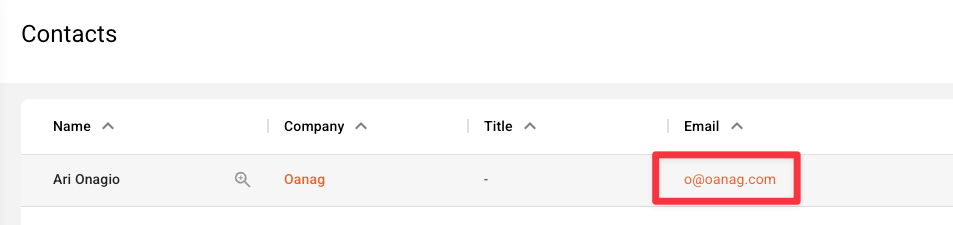
Click on an email address anywhere within Spiro
-
Click the Email button in the top toolbar

This opens the email composer.
Step 2: Enable Tracking
Inside the email modal, you will see a Tracking option.
Click the tracking option to view two available settings:
- Open Tracking
-
Link Tracking
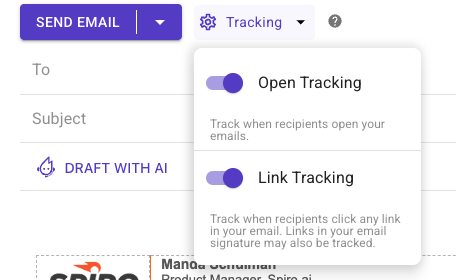
You can enable either option individually or turn on both together before sending the email.
What Open Tracking Does
Open Tracking records when a recipient opens your email.
When enabled, Spiro logs open events and displays them in the Tracking Activity tab of the email.
Important Note About Open Tracking
Open tracking can sometimes produce false positives.
Some email servers automatically scan incoming messages for:
- Viruses
- Malware
- Spam detection
These automated scans may trigger the tracking pixel and register as an open event, even if the recipient did not actually read the email.
Because of this, open tracking should be viewed as a general indicator of engagement rather than a guaranteed confirmation that the recipient read the email.
What Link Tracking Does
Link Tracking records when a recipient clicks a link inside your email.
This type of tracking is typically more accurate than open tracking because it requires an actual user interaction.
When a link is clicked, Spiro records:
- The URL that was clicked
- The date and time of the click
- A history of all clicks if the link is clicked multiple times
If your email contains multiple links, each click will be tracked separately.
How to Ensure Links Are Tracked
For link tracking to work, the link must use a complete URL format.
Supported formats include:
https://example.comhttp://example.comwww.example.com
Adding a Trackable Link
To insert a trackable link:
-
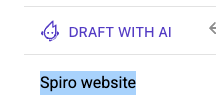
In the email modal, choose the text you would like to hyperlink and highlight it
-
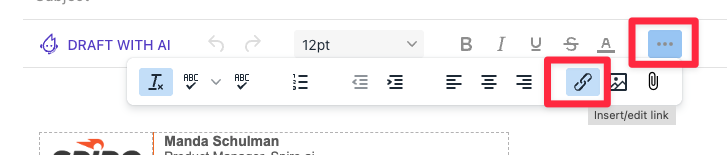
Click the Insert Link icon in the toolbar.
-
Enter the full URL (for example:
www.spiro.ai).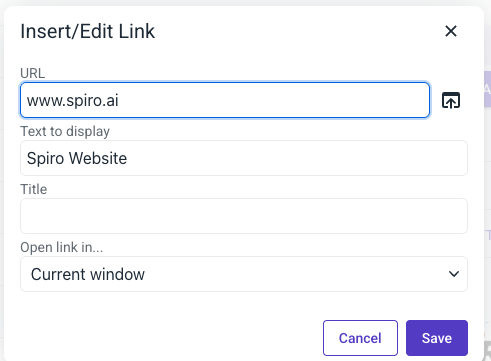
-
Click Save.
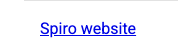
Once inserted this way, the link will be tracked when recipients click it.
Links in Email Signatures
If your email signature contains links that use a full URL format, those links may also be tracked when clicked.
Tracking Activity
After sending an email from Spiro, the message will sync to your Activities tab.
Activity Indicator
If an email has been opened or a tracked link has been clicked, a purple dot will appear next to the email in the activity list.

This indicator signals that tracking activity is available for that email. Hover over the purple dot to see a quick summary of the most recent tracking event, including:
- The type of action (open or link click)
- The date and time the activity occurred
To see the full tracking history, click the email and open the Tracking Activity tab.

Viewing Tracking Activity
To view tracking information:
- Open the email activity by clicking on the subject of the email.
-
Click the Tracking Activity tab.
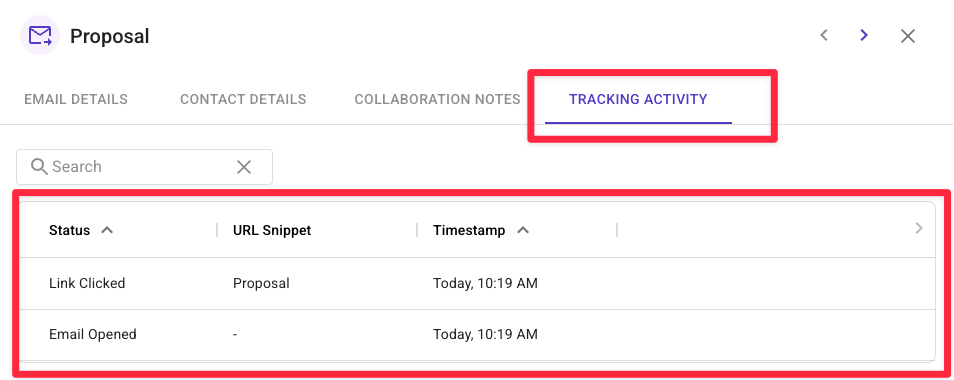
Here you will see a timeline of tracking events showing:
- Whether the email was opened
- Whether a link was clicked
- Which link was clicked (if applicable)
- The date and time of each action
- A history of all tracking events
Tracking Notifications
Spiro also notifies you when recipients interact with your emails.
Pop-Up Notifications
When someone opens your email or clicks a tracked link, Spiro will display a pop-up notification and an alert in the Alert Center.

These notifications appear in real time so you can quickly see when a recipient engages with your message.
Managing Notification Preferences
If you prefer fewer pop-ups, you can manage these alerts in the Notification Center.
From there, you can:
- Adjust notification settings
-
Turn off pop-up alerts for email opens or link clicks

